I implemented various ways to deliver and display the PTCGL codes you bought. My goal is to make it as simple as possible for you, so you can get back to building your decks and playing the game ASAP.
This blog post describes the implementations as of August 2025. There is a German roadmap page where I keep track of ideas and changes. If you have ideas how I can make it even easier for you, please contact me.
Order Fulfillment
Your order will be processed automatically once payment is received. Codes will be sent via Email and made accessible through My Codes.
Once the order is processed, an Email will be sent to the buyers address. It has a codes-${orderId}.txt attached, which contain all new codes in a text file. It is suitable for users on a PC for Copy & Paste redemption.
It is mainly meant for push delivery to get the newly ordered codes out to the user cleanly and ASAP. It also serves as a backup mechanism, in case something goes wrong with My Codes.
My Codes
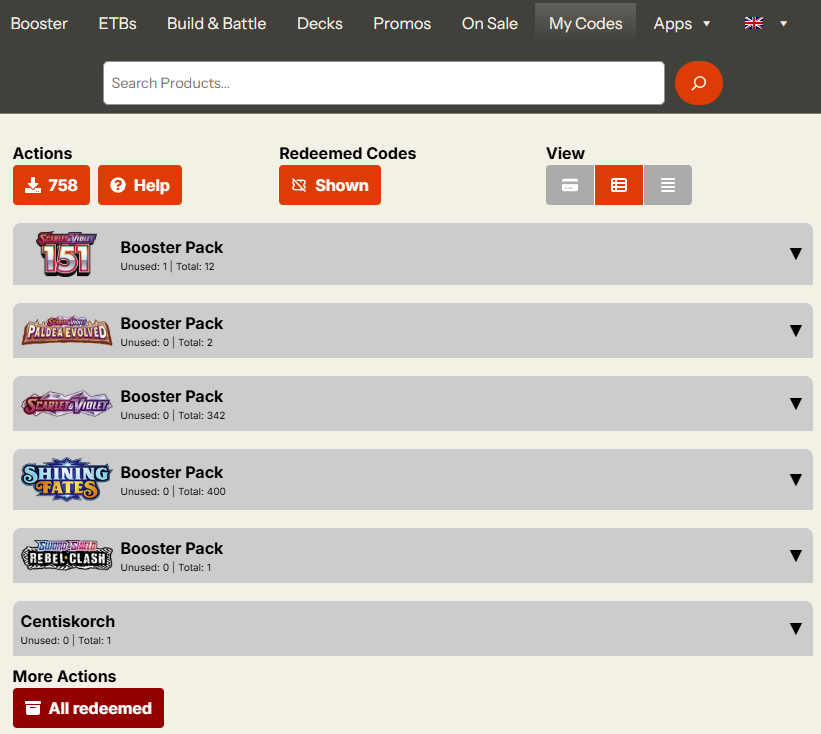
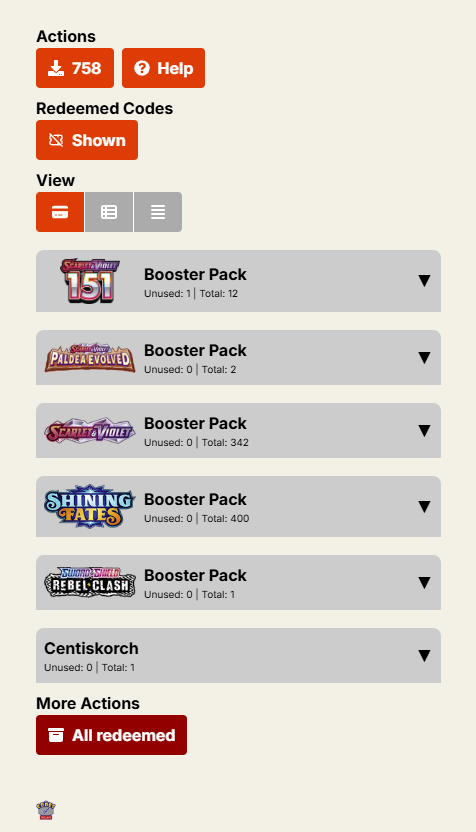
My Codes offers various means to access, display and manage your codes. My Codes can be used on a single phone, for screen scanning off of another device, Copy & Paste and even printing (PDF download for printing is on the roadmap).
Download Button
The most basic method way to get all the codes currently displayed. Just press it and you get a c4t_all_codes.txt downloaded for backup and usage.
Card View
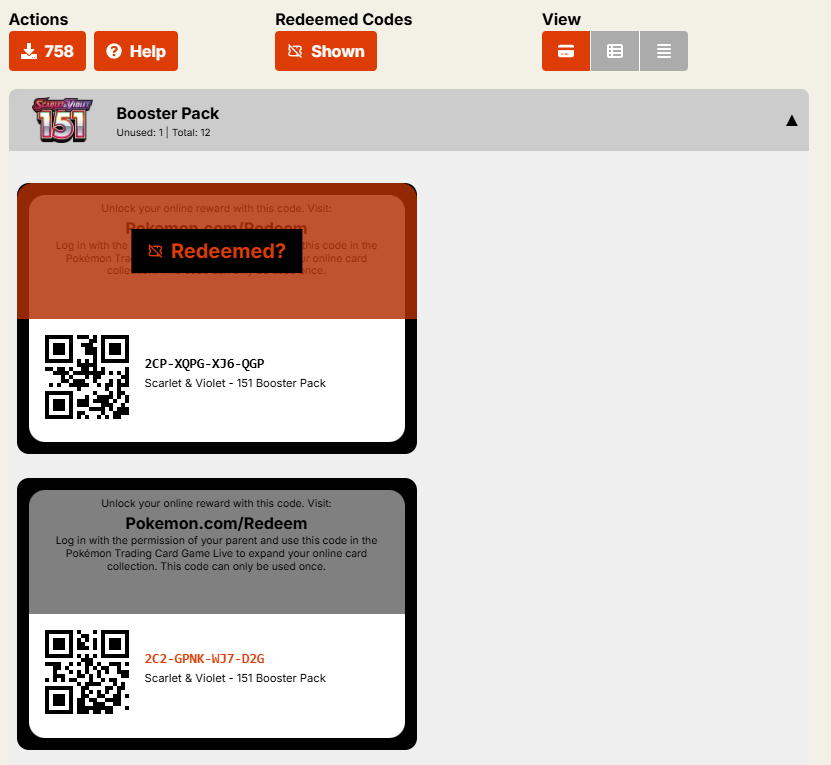
Displays your codes similar to real code cards. Good for screen scanning via camera. Also offers a good touch interface.
Press top part of card twice: Mark redeemed/not-redeemed
Press bottom part of card: Copy code to clipboard
Table View
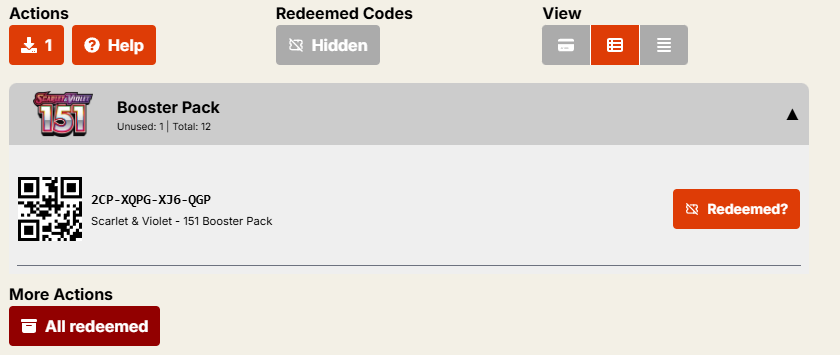
A more condensed for of the Card View information. Good for screen scanning, Click & Paste and probably also printing.
Press code text: Copy to clipboard
Press code again: Mark redeemed (or not-redeemed) confirmation dialog
List View
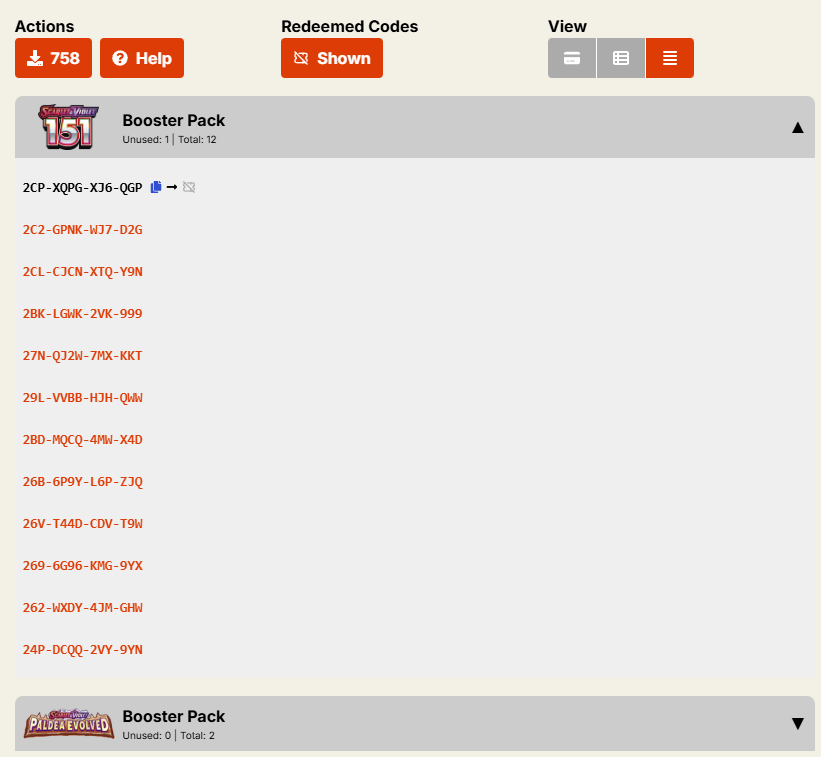
Textual representation with an efficient Click & Paste & Archive workflow.
Press code: Copy to clipboard
Press code again: Mark redeemed (or not-redeemed) confirmation dialog
Archiving / Marking Codes redeemed
Marking codes as redeemed helps you organize your collection. It has nothing to do with redemption in PTCGL.
You can still always mark them as not-redeemed or display all redeemed codes by pressing the Hidden/Shown button. A button to finally delete all archived codes is also on the roadmap.